
Getting Started with Kubernetes: A Quick Start Guide#
People keep asking me, “How do I get started with Kubernetes?” And honestly, I never had a good answer to send them. So I wrote this post.
If you’re looking for production-ready configs, check out my Homelab repository where I run a full Talos K8s cluster with ArgoCD, monitoring, and more. Or don’t. I’m not your boss.
What is Kubernetes? (The 30-Second Version)#
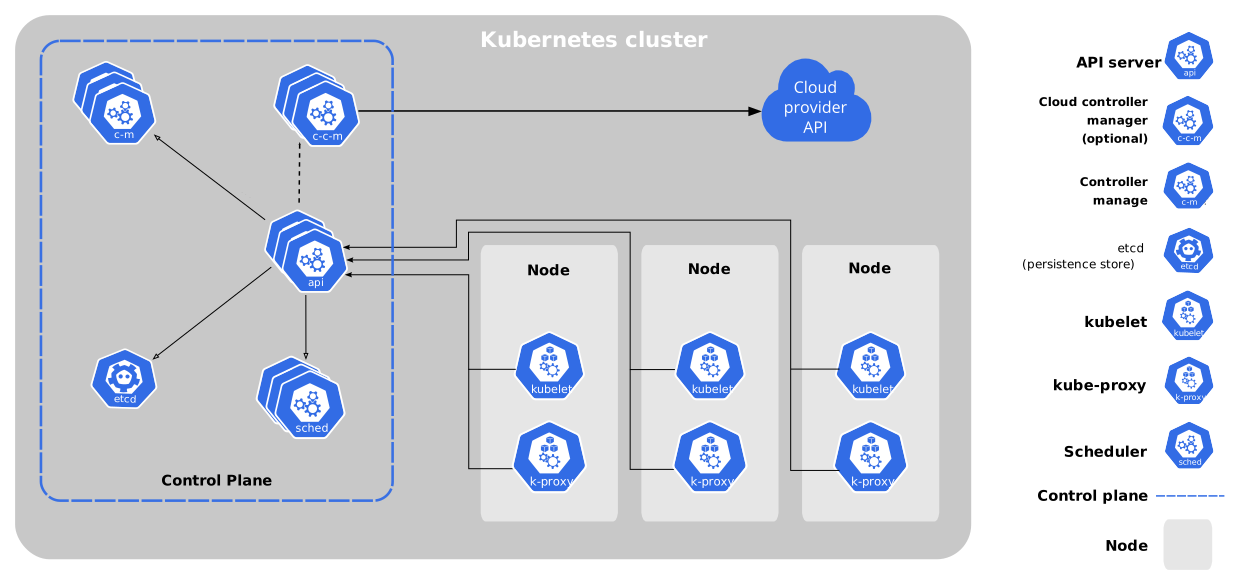
Kubernetes (K8s) is Google’s gift to humanity. Or punishment, depending on who you ask. It’s a container orchestration platform that takes your Docker containers and runs them at scale. You tell it what you want, and it handles the rest.
Sometimes it even works on the first try.
Think of it like this:
Docker = running one container on your laptop
Kubernetes = running hundreds of containers across multiple servers, with automatic restarts, load balancing, and zero downtime deployments
Is it overkill for your side project? Absolutely.
Are you going to use it anyway? Of course you are.
That’s why we’re here.
Prerequisites#
Before we start, you need:
- Docker (Docker Desktop or Docker Engine)
- kind (Kubernetes in Docker)
- kubectl (Kubernetes CLI)
- A terminal and a text editor
- 30 minutes and a tolerance for YAML
That’s it. No cloud account, no credit card, no “free tier that expires in 12 months.” We’re running everything locally because we like it free, don’t we?
Install Tools#
Install the required tools following the official documentation:
- Docker: Download here
- kind: Installation guide
- kubectl: Installation guide
Once you have all three installed, you’re ready to create a cluster.
Create a Kind Cluster#
We’ll create a cluster with port mappings configured so NodePort services work properly. Create a file called kind-config.yaml:
# kind-config.yaml
kind: Cluster
apiVersion: kind.x-k8s.io/v1alpha4
nodes:
  - role: control-plane
    extraPortMappings:
      - containerPort: 30080
        hostPort: 8080
        protocol: TCP
This maps port 30080 inside the cluster to port 8080 on your localhost. We’ll use this later for networking demos.
Create the cluster:
kind create cluster --name quickstart --config kind-config.yamlThis takes about 1-2 minutes. Kind downloads a Kubernetes node image and runs it as a Docker container.
Verify it’s running:
kubectl cluster-info --context kind-quickstartYou should see something about a Kubernetes control plane. If so, congrats. You’re running Kubernetes.
Understanding the Basics#
Kubernetes uses YAML files to describe what you want to run. The main objects you’ll use:
Pods - The smallest unit. Usually contains one container.
Deployments - Manage multiple identical pods. Handles scaling and updates.
Services - Handle networking between pods and external traffic.
Namespaces - Logical separation for organizing resources.
You’ll start with Deployments and Services. We’ll cover namespaces and networking in detail below.
A Quick Note on YAML vs JSON#
Kubernetes internally stores everything as JSON. But YAML is how we humans interact with it because it’s more readable and less verbose. When you run kubectl apply -f deployment.yaml, it converts your YAML to JSON before sending it to the API server.
You can actually use JSON if you want (kubectl apply -f deployment.json), but nobody does. YAML is king in the Kubernetes world.
Declarative vs Imperative#
Before we deploy anything, you need to understand how Kubernetes works. There are two ways to interact with it.
Declarative (the right way)#
kubectl apply -f deployment.yamlYou write YAML files describing what you want (the desired state). Kubernetes figures out how to get there. Repeatable, version-controlled, and how production systems work.
Imperative (quick and dirty)#
kubectl create deployment whoami --image=ghcr.io/traefik/whoami:v1.11 --replicas=3
kubectl scale deployment whoami --replicas=5
kubectl delete deployment whoami
You tell Kubernetes what to do with commands. Fast for testing, but not repeatable and you lose track of what you did.
The best of both worlds#
Don’t want to write YAML from scratch? Use --dry-run=client -o yaml to generate it:
kubectl create deployment whoami --image=ghcr.io/traefik/whoami:v1.11 --replicas=3 --dry-run=client -o yaml > whoami-deployment.yamlThis creates the YAML file without actually deploying anything. Open it, verify it looks right, then kubectl apply -f whoami-deployment.yaml.
We’ll use the declarative approach for this tutorial. Stick with it for anything that matters.
Deploy Your First Application#
Let’s deploy whoami, a tiny web service that returns information about the pod handling your request. Perfect for learning because you can literally see different pods responding when you scale—visual feedback is everything.
Create a file called whoami-deployment.yaml:
apiVersion: apps/v1
kind: Deployment
metadata:
  name: whoami-deployment
  labels:
    app: whoami
spec:
  replicas: 3
  selector:
    matchLabels:
      app: whoami
  template:
    metadata:
      labels:
        app: whoami
    spec:
      containers:
        - name: whoami
          image: ghcr.io/traefik/whoami:v1.11
          ports:
            - containerPort: 80
This creates a Deployment named whoami-deployment that runs 3 copies (replicas) of the whoami container and exposes port 80 inside each container.
Apply it:
kubectl apply -f whoami-deployment.yamlCheck if it’s running:
kubectl get podsYou should see 3 pods with names like whoami-deployment-xxxxx-xxxxx. All should show STATUS: Running after a few seconds.
Great! Your pods are running. But they’re isolated inside the cluster. Let’s fix that.
Expose It with a Service#
Your whoami pods are running, but you can’t access them yet. Services provide networking and load balancing.
Create whoami-service.yaml:
apiVersion: v1
kind: Service
metadata:
  name: whoami-service
spec:
  selector:
    app: whoami
  ports:
    - protocol: TCP
      port: 80
      targetPort: 80
This creates a ClusterIP Service (the default type) that routes traffic to any pod with the label app: whoami. The service is only accessible inside the cluster.
Apply it:
kubectl apply -f whoami-service.yamlCheck the service:
kubectl get service whoami-serviceTo access it from your laptop, use port-forwarding:
kubectl port-forward service/whoami-service 8080:80Keep that terminal running and open your browser to http://localhost:8080. You should see output like this:
Hostname: whoami-deployment-7d8f9c5b4-x9k2l
IP: 127.0.0.1
IP: ::1
IP: 10.244.0.5
RemoteAddr: 10.244.0.1:42568
GET / HTTP/1.1
Host: localhost:8080
...
Here’s the cool part: Refresh the page a few times. Notice the Hostname changes? That’s Kubernetes load balancing between your 3 pods. Each refresh might hit a different pod. This is exactly what you want to see. Proof that load balancing works.
About Service types: We used ClusterIP (the default), which only works inside the cluster. Want to expose services properly? See the “Kubernetes Networking Deep Dive” section below.
Congratulations. You just deployed a load-balanced application to Kubernetes and can visually see it working.
Press Ctrl+C in the port-forward terminal when you’re ready to move on.
Scale It Up and Down#
Want more replicas? Easy:
kubectl scale deployment whoami-deployment --replicas=5Watch them start:
kubectl get pods -wPress Ctrl+C to stop watching.
Now refresh http://localhost:8080 a bunch of times (make sure your port-forward is still running). You’ll see 5 different hostnames rotating. Visual proof of scaling.
Scale back down:
kubectl scale deployment whoami-deployment --replicas=2Kubernetes automatically terminates the extra pods. Your service keeps working the entire time.
Refresh again. Now you’ll only see 2 hostnames.
Update Your Application#
Let’s change the whoami version. Open your whoami-deployment.yaml in vim:
vim whoami-deployment.yamlChange the image version:
# Change this line:
image: ghcr.io/traefik/whoami:v1.11
# To this:
image: ghcr.io/traefik/whoami:v1.10
Save and exit (:wq).
Apply the change:
kubectl apply -f whoami-deployment.yamlKubernetes performs a rolling update. It starts new pods with the new image, waits for them to be ready, then terminates the old ones. Zero downtime.
Check the rollout status:
kubectl rollout status deployment/whoami-deploymentKeep refreshing http://localhost:8080 during the rollout. Notice you never get an error?
That’s zero-downtime deployment in action. Well, in theory. You need health checks configured properly for it to actually work in production, but the idea is there.
That’s the power of Kubernetes. Declarative updates. You just change the YAML and apply it.
Understanding Namespaces#
Now that you’ve deployed and updated applications, let’s talk about organizing them with namespaces.
Namespaces are Kubernetes’ way of dividing cluster resources. Think of them as virtual clusters within your physical cluster. You can have multiple teams or applications sharing the same cluster without stepping on each other’s toes.
Why use namespaces?#
- Isolation: Resources in one namespace can’t accidentally interfere with another
- Organization: Group related resources together (all blog components in
blognamespace) - Access control: Apply different RBAC policies per namespace
- Resource quotas: Limit CPU/memory per namespace to prevent one app from hogging everything
See existing namespaces#
kubectl get namespacesYou’ll see system namespaces like kube-system (Kubernetes internals), kube-public (publicly readable), and default (where your stuff goes if you don’t specify).
Create a namespace#
kubectl create namespace demoOr the declarative way:
apiVersion: v1
kind: Namespace
metadata:
  name: demo
Save as namespace.yaml and apply with kubectl apply -f namespace.yaml.
Deploy to a specific namespace#
Add namespace: demo to your resource metadata:
apiVersion: apps/v1
kind: Deployment
metadata:
  name: whoami-deployment
  namespace: demo # This line
  labels:
    app: whoami
Or use the -n flag:
kubectl apply -f whoami-deployment.yaml -n demo
kubectl get pods -n demo
Set default namespace for your context#
Tired of typing -n demo every time?
kubectl config set-context --current --namespace=demoNow all commands use demo by default. Switch back to default anytime:
kubectl config set-context --current --namespace=defaultWhen to use namespaces#
- Multiple environments in one cluster (dev, staging, prod)
- Multiple teams sharing a cluster
- Separating different applications
- Applying resource quotas or network policies
When NOT to use namespaces#
- Learning Kubernetes for the first time (stick to
default) - Small single-user homelabs with 3-4 apps
- When you need resources to talk across boundaries (namespaces add networking complexity)
For this tutorial, we stuck with the default namespace. But in production, you’d absolutely use them to organize your workloads.
Kubernetes Networking Deep Dive#
Let’s talk about how networking actually works in Kubernetes. This is where most beginners get confused, and where production setups vary wildly.
The Three Service Types#
Kubernetes has three main ways to expose your applications:
1. ClusterIP (Default)
This is what we used for whoami-service earlier. Only accessible within the cluster.
When to use:
- Internal services (databases, message queues)
- Backend APIs called by other services
- Anything that shouldn’t be exposed outside
How to access:
- From other pods:
http://whoami-service:80 - From your laptop:
kubectl port-forward(development only) - Via an Ingress controller (production)
2. NodePort
Exposes the service on a static port on each node’s IP.
apiVersion: v1
kind: Service
metadata:
  name: whoami-nodeport
spec:
  type: NodePort
  selector:
    app: whoami
  ports:
    - port: 80
      targetPort: 80
      nodePort: 30080 # Optional: auto-assigned if omitted (range 30000-32767)
When to use:
- Quick demos
- Bare-metal clusters without a load balancer
- When you want direct node access
Downsides:
- High port numbers (30000-32767 range)
- Exposes service on every node
- No automatic load balancing across nodes
- Not recommended for production
3. LoadBalancer
Creates an external load balancer (if your environment supports it).
apiVersion: v1
kind: Service
metadata:
  name: whoami-lb
spec:
  type: LoadBalancer
  selector:
    app: whoami
  ports:
    - port: 80
      targetPort: 80
When to use:
- Production services that need external access
- When you need a stable external IP
- Cloud or bare-metal with MetalLB/Cilium LB
Networking in Different Environments#
Kind Clusters (Local Development)#
Kind runs Kubernetes inside Docker containers on your laptop. Networking is limited:
LoadBalancer services don’t work by default. The EXTERNAL-IP stays in <pending> state forever.
$ kubectl get service whoami-lb
NAME        TYPE           CLUSTER-IP      EXTERNAL-IP   PORT(S)
whoami-lb   LoadBalancer   10.96.100.200   <pending>     80:31234/TCP
You can access via NodePort (the 31234 above). Remember we configured port mappings when we created the cluster? That’s why this works. You can access NodePort 30080 via http://localhost:8080.
Best practice for kind:
- Use
kubectl port-forwardfor quick tests - Or install Traefik for more realistic setup
Cloud Providers (AWS, GCP, Azure)#
Cloud providers have native LoadBalancer support. When you create a LoadBalancer service:
- Kubernetes talks to the cloud provider API
- Cloud provisions a real load balancer (AWS ELB, GCP Load Balancer, Azure LB)
- External IP is assigned automatically
- Traffic flows: Internet → Cloud LB → Nodes → Pods
$ kubectl get service whoami-lb
NAME        TYPE           EXTERNAL-IP       PORT(S)
whoami-lb   LoadBalancer   35.123.45.67      80:31234/TCP
Costs: Cloud load balancers cost $15-30/month each. Don’t create dozens of LoadBalancer services, use an Ingress controller instead (one LB, many services).
Self-Hosted / Bare Metal (MetalLB)#
MetalLB provides LoadBalancer services on bare-metal clusters.
How it works:
- You configure MetalLB with a pool of IP addresses
- When you create a LoadBalancer service, MetalLB assigns an IP from the pool
- MetalLB announces the IP via Layer 2 (ARP) or BGP
- Traffic to that IP reaches your cluster
Install MetalLB:
kubectl apply -f https://raw.githubusercontent.com/metallb/metallb/v0.14.9/config/manifests/metallb-native.yamlConfigure IP pool (edit to match your network):
apiVersion: metallb.io/v1beta1
kind: IPAddressPool
metadata:
  name: homelab-pool
  namespace: metallb-system
spec:
  addresses:
    - 192.168.1.240-192.168.1.250 # 11 IPs for services
---
apiVersion: metallb.io/v1beta1
kind: L2Advertisement
metadata:
  name: homelab-l2
  namespace: metallb-system
spec:
  ipAddressPools:
    - homelab-pool
Now LoadBalancer services get real IPs:
$ kubectl get service whoami-lb
NAME        TYPE           EXTERNAL-IP     PORT(S)
whoami-lb   LoadBalancer   192.168.1.240   80:31234/TCP
Access directly via http://192.168.1.240.
When to use MetalLB:
- Homelab or on-premise clusters
- When you control the network
- Layer 2 mode (easy) or BGP mode (advanced)
Self-Hosted with Cilium (My Setup)#
Cilium is a next-gen CNI that includes load balancing via eBPF.
I use Cilium LB in my homelab. It’s faster than MetalLB (no iptables overhead) and integrates with Gateway API for modern HTTP routing.
Cilium LB configuration:
apiVersion: cilium.io/v2alpha1
kind: CiliumLoadBalancerIPPool
metadata:
  name: homelab-pool
spec:
  cidrs:
    - cidr: 192.168.1.240/28 # 16 IPs
Full config in my Cilium setup.
Why Cilium over MetalLB:
- Better performance (eBPF vs iptables)
- Native Gateway API support
- Built-in network policies
- Hubble observability
Downside: More complex to set up and troubleshoot.
Ingress Controllers (The Right Way™)#
Creating a LoadBalancer service for every app is wasteful (cloud costs) or uses up IPs (bare metal). Use an Ingress controller instead.
Note: Kubernetes is moving away from traditional Ingress to Gateway API, which offers more flexibility and better role-oriented design. Gateway API is the future, but that’s a topic for another blog post. For now, traditional Ingress is still widely used and perfectly fine for learning.
How it works:
- Deploy one Ingress controller (Traefik, Cilium Gateway)
- Create one LoadBalancer service for the controller
- Create Ingress resources for each app
- Controller routes traffic based on hostnames/paths
Traffic flow: Internet → LB → Ingress Controller → Service → Pods
Example Ingress (Traefik):
apiVersion: networking.k8s.io/v1
kind: Ingress
metadata:
  name: whoami-ingress
spec:
  ingressClassName: traefik
  rules:
    - host: whoami.example.com
      http:
        paths:
          - path: /
            pathType: Prefix
            backend:
              service:
                name: whoami-service
                port:
                  number: 80
Now http://whoami.example.com routes to your whoami-service without needing its own LoadBalancer.
Popular options:
- Traefik: Auto-discovery, built-in Let’s Encrypt, supports both Ingress and Gateway API (my config)
- Cilium Gateway API: Modern Gateway API implementation, eBPF-powered
Quick Takeaway#
Start with ClusterIP and port-forwarding. Add an Ingress controller when you need hostnames. Add MetalLB/Cilium when you go bare metal. Don’t overthink it—ClusterIP gets you 90% of the way.
Debug When Things Break#
They will break. Not if, but when.
Kubernetes has a special talent for failing in creative ways. Here’s your debugging toolkit:
- Check pod status:
kubectl get pods - See why a pod failed:
kubectl describe pod <pod-name> - View container logs:
kubectl logs <pod-name>(single pod) orkubectl logs deployment/whoami-deployment(merged logs from all pods) - Get a shell inside a pod:
kubectl exec -it <pod-name> -- /bin/bash
When all else fails, delete and restart everything:
kubectl delete deployment whoami-deployment
kubectl delete service whoami-service
Then re-apply your YAML files.
Clean Up (Optional)#
When you’re done experimenting, you can delete your cluster:
kind delete cluster --name quickstartThis removes everything. To start fresh, just run kind create cluster again.
Choosing Your Homelab Kubernetes Distribution#
Want to build your own homelab Kubernetes cluster? Here are your options, from simplest to most complex:
Single VM (Easy Setup)#
kind#
As you’ve seen above, kind runs Kubernetes in Docker containers. Perfect for learning and development. Limited networking options but gets you 90% of the way there.
For homelab use: Running a homelab but not ready for a 6-node HA cluster? Run a single-node kind cluster on a VM instead. You get all the Kubernetes goodies (GitOps, monitoring, ingress) without the complexity of multi-node networking or distributed storage. Install Docker on a VM, create a kind cluster, and you’re done. Same workflow as this tutorial, but it persists across reboots.
MicroK8s#
MicroK8s is Canonical’s single-package Kubernetes. Runs as a snap on Ubuntu. Easy to install, includes addons for common stuff (DNS, storage, ingress). Great for a single VM setup. Just snap install microk8s and you’re running.
Multi-Node (Production-ish)#
k3s#
k3s is lightweight Kubernetes by Rancher. Designed for edge and resource-constrained environments. Easy multi-node setup, includes Traefik by default, uses SQLite instead of etcd (can switch to etcd for HA). Install on multiple VMs, point them at each other, done. My go-to before I discovered Talos.
Complex but Secure (My Setup)#
Talos Linux#
Talos Linux is an immutable Linux OS built specifically for Kubernetes. No SSH, no shell, everything is API-driven. Extremely secure, GitOps-native, automatic updates. Configuration via YAML. Steep learning curve but absolutely worth it for production homelabs.
Why I use Talos:
- Immutable infrastructure (no snowflake servers)
- API-only management (no SSH means no SSH exploits)
- Built-in support for disk encryption, secure boot
- Declarative everything (nodes, config, upgrades)
- Actually designed for Kubernetes, not retrofitted
Check my Talos configs to see how I provision everything with Terraform.
DIY (The Hard Way)#
Manual Kubernetes#
Install the Kubernetes binaries yourself. Kubernetes The Hard Way is the gold standard guide. You’ll understand every component deeply. You’ll also hate yourself a little. Only recommended if you’re studying for CKA or genuinely want to understand the internals.
My Recommendation#
- Learning: Stick with kind (what we used here)
- Simple homelab (1-2 VMs): kind or MicroK8s
- Multi-node homelab: k3s
- Production-grade homelab: Talos (my setup)
- Masochist: Manual install
Start simple. You can always migrate later. I ran k3s for a year before moving to Talos.
What’s Next?#
You just learned the basics. Here’s what to try next:
Deploy a real app. My blog deployment is a good starting point. It has a Deployment, Service, and HTTPRoute. You can steal the whole thing and adapt it.
Add health checks. Look at how I configured livenessProbe and readinessProbe in my blog deployment. Copy that pattern.
Try Helm. Install something from a Helm chart. Run helm repo add traefik https://traefik.github.io/charts then helm install traefik traefik/traefik. Way easier than writing YAML from scratch.
GitOps with ArgoCD. This is the real game changer. Check my ArgoCD setup to see how I auto-sync everything from Git. Push YAML, watch it deploy automatically.
Production cluster. I’ll be writing a full guide on my Proxmox/Terraform/Talos setup soon. If you want to see the code now, check the Talos configs. It’s Infrastructure as Code all the way down.
Most importantly: break things on purpose. Delete random pods. Deploy bad images. You’ll learn more from failures than from tutorials.
Common Mistakes to Avoid#
I made all of these. Learn from my pain:
Don’t use latest image tags. Always pin specific versions like v1.11 or 1.27.0. “It works on my machine” becomes “it worked yesterday” real fast with latest.
Don’t edit pods directly. If you run kubectl edit pod, your changes disappear when the pod restarts. Always edit the Deployment instead. The Deployment is your source of truth.
YAML indentation matters. Use 2 spaces, not tabs. One wrong indent and Kubernetes will reject your entire manifest with a cryptic error message.
Don’t ignore labels and selectors. They’re how Services find Pods and Deployments manage Pods. Get them wrong and nothing connects. Double-check they match.
Don’t run databases in Kubernetes right away. Stateful workloads are hard. Start with stateless apps. Learn to walk before you try to run Postgres in production.
Resources#
- Official Kubernetes Documentation - Actually decent once you know what you’re looking for
- kind Documentation - Local Kubernetes clusters
- Kubernetes The Hard Way - If you want to understand the internals (and hate yourself a little)
- My Homelab Repo - Real-world Kubernetes configs
- kubectl Cheat Sheet - Worth bookmarking
Final Thoughts#
Kubernetes has a reputation for being complex. It is, but not at the start.
You don’t need to understand CRDs, operators, service meshes, or CNI plugins to deploy your first app. You just need Deployments and Services. Everything else is someone trying to justify their CNCF certification.
Start simple. Deploy something. Break it. Fix it. Read the docs when you get stuck. You’ll build intuition faster than any tutorial can teach.
If you found this helpful, star the Homelab repo.
Now go break something in Kubernetes. That’s how you learn.